How to Check Grok Bot Usage and What’s Eating Your Limit
Find your Grok Bot usage breakdown, see which Bots are consuming your weekly limit, and check routines and extra-usage settings before spending more.

If your Grok Bot allowance is disappearing faster than expected, there is now a better place to start than guessing which task used it. The app’s usage breakdown lets you compare individual Bots and view usage by source, alongside your weekly meter and reset time.
The per-Bot and per-source views are also listed in Grok Bot’s current official documentation. Here’s how to find them and use the information to track down what is eating your limit.
How to check your Grok Bot usage
- Open the Grok Bot desktop app.
- Go to Settings.
- Open Usage & Billing.
- Scroll down to Grok Bot Usage.
- Click By Bot.
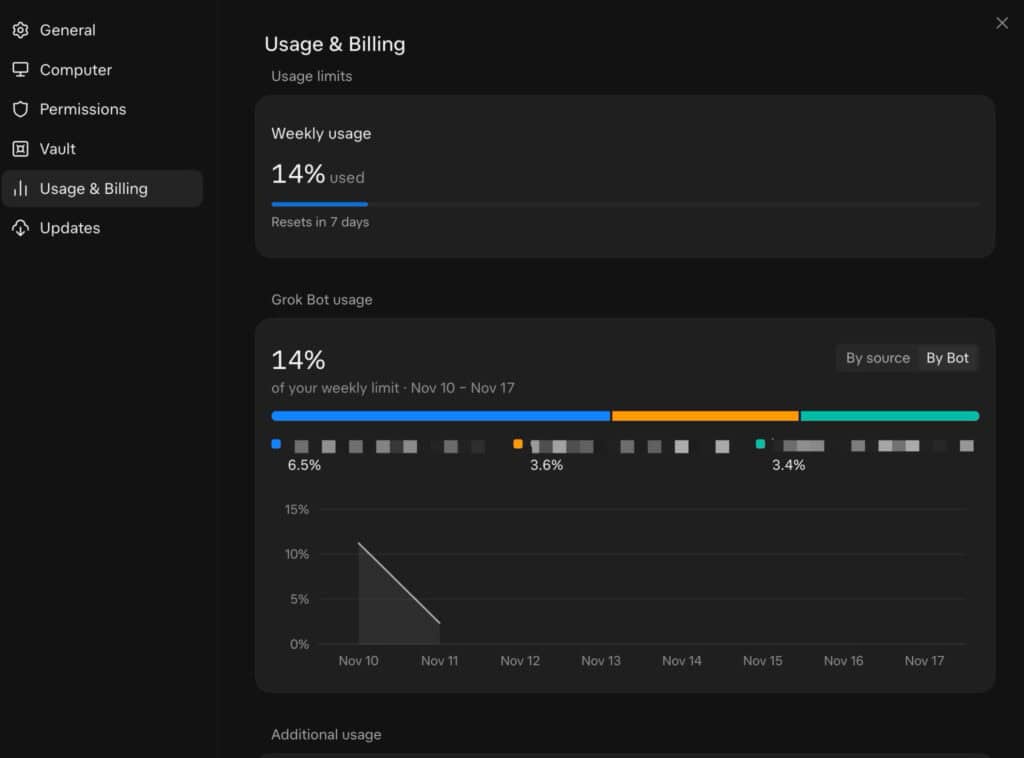
The Usage limits section also shows how much of your weekly allowance you have used and when it resets. Enterprise accounts show their spend limit instead.
These are the steps in the official settings guide, which cautions that sections vary by account and rollout. If you do not see the chart, that does not mean nothing has used your allowance.
On iPhone and Android, the usage page is under Settings → Usage. You can also ask your own Bot to review your plan, usage and reset time in a private chat. The documentation does not promise the same detailed charts on every device.
How to find what’s eating your limit
Start with By Bot to find the largest contributor, then review that Bot’s recent work. The figures shown are specific to your account and usage period, rather than a normal usage benchmark.
Next, check By source and compare the categories shown in your account. This is a second way to investigate the activity behind the total. Neither view should be treated as a guaranteed receipt for every individual prompt.
Check routines early. According to the official routines guide, every run consumes usage, including test runs. Frequent schedules or triggers in a busy Slack channel can burn through a weekly allowance in a day.
- On desktop, click the Bot’s name, open Details and review its routines. Use a routine’s switch to pause work you no longer need.
- Check each routine’s instructions and schedule or trigger. Ask the Bot to run it less often or narrow what activates it.
- On mobile, open the Bot’s profile, find Routines and review Run history. Turn off Active to pause a routine.
Closing your laptop or the app does not stop cloud work. Larger jobs also require more work than short requests, so message count alone is a poor guide to how far your allowance will go.
There is one useful limit to the detective work: the official FAQ says usage is recorded as Grok Bot activity, not broken down by model or provider. You cannot use this screen to establish which underlying AI model handled a task.
Check which allowance you’re using
The billing setup matters. On The X Subscription, Grok Bot draws from a shared weekly pool with eligible Grok and Cursor usage. Open grok.com/dashboard and choose Usage to check it. Activity elsewhere in that shared pool can therefore affect what remains for your Bots.
Legacy Cursor plans and linked SuperGrok accounts work differently. Check the Cursor dashboard and Grok Bot’s plan screen. A Cursor allowance and a linked SuperGrok allowance do not add together; Grok Bot uses the larger eligible grant.
Before buying more usage, review Additional usage. Unified plans use prepaid credits and top-ups, while legacy plans can continue with paid on-demand usage if enabled. The billing guide warns that a legacy monthly on-demand cap does not interrupt a run already underway, so it can finish above the cap.
What the latest reset changed
Grok Bot’s official account announced a weekly-limit reset for all users on November 9, following reports of sudden usage spikes and Musk’s promise of fixes. The announcement did not say weekly allowances had permanently increased.
The new breakdown gives you a more useful starting point for the next cycle: find the busiest Bot, review its recurring work and check your spending settings before raising a limit.
What is using the biggest share of your Grok Bot allowance: one big task, routines or a particular Bot?
Tesla news, every morning.
Software updates, deliveries, FSD rollouts. Five minutes. Free.