How to Use Tesla Low Power Mode and What It Turns Off
Tesla’s new video shows where to find Low Power Mode, how to set it to turn on automatically and which features it shuts off.

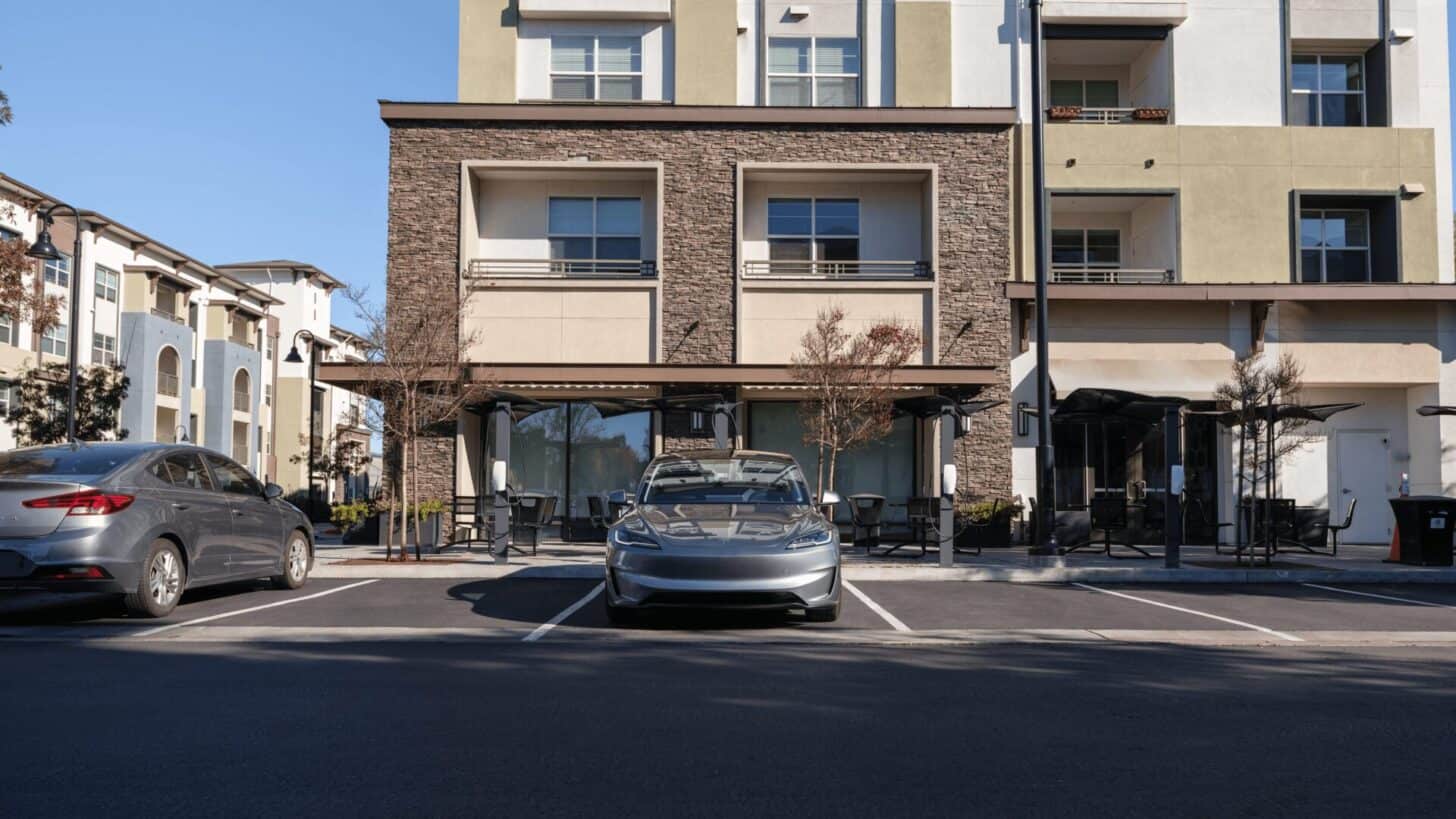
If you’re leaving your Tesla parked and unplugged for a few days, Low Power Mode can help it hang on to more of its charge. Tesla’s new 40-second tutorial shows where to find the setting and how to choose when it kicks in.
This isn’t a new software feature. Low Power Mode arrived with Tesla’s 2025.32.3 update. The new clip is a refresher for anyone wondering what the car gives up to save power.
How to Turn On Tesla Low Power Mode
On the touchscreen, go to Controls > Charging > Low Power Mode. You can turn it on there or choose a battery level between 10% and 20% for automatic activation. Tesla sets it to 20% by default.

What Low Power Mode Turns Off
On the Model 3, Tesla says you won’t be able to use these features while Low Power Mode is active:
- Sentry Mode
- Keep Accessory Power On
- Actually Smart Summon Standby Mode
- Keep Climate On and Camp
- Cabin Overheat Protection
- Preconditioning
That last one is worth remembering if you normally warm up the cabin before you drive. The car still uses some energy for standby functions, the screen and the mobile app. In cold weather, it can also lose available energy faster, even with the setting on.
If you want to see how much charge you’re losing while parked, open the in-car Energy app and tap Park. You can check energy use since your last drive or your last charge.
When you leave your Tesla parked for a few days, would you rather save the extra charge or keep Sentry Mode on?
Tesla news, every morning.
Software updates, deliveries, FSD rollouts. Five minutes. Free.